
Understanding Starlink's Hardware Evolution
The comparison of Starlink Gen 1 vs Gen 2 vs Gen 3 covers three commonly used names for Starlink's Standard residential hardware. These labels are convenient but informal: Starlink's current documentation may instead use product names such as Standard, Standard Actuated, Router 2, and Router 3. They should not be confused with Starlink Mini or Performance-family hardware.
The biggest differences are physical design, alignment, cabling, router technology, Ethernet access, and power use. They do not create a guaranteed internet-speed ranking. Actual service performance depends on your plan, location, network congestion, sky visibility, weather, and installation.
| Feature | Gen 1 (Round) | Gen 2 (Standard Actuated) | Gen 3 (Standard) |
|---|---|---|---|
| Antenna shape | Round | Rectangular | Rectangular |
| Orientation | Motorized | Motorized | Software-assisted manual alignment |
| Nominal antenna size | About 23.2 in diameter; revisions vary | About 20.2 × 11.9 in | 23.4 × 15.07 × 1.5 in |
| Included router generation | Wi-Fi 5-era router | Dual-band Wi-Fi 5 Router 2 | Tri-band Wi-Fi 6 Router 3 |
| Wired LAN access | Original router generally includes one Ethernet port | Requires the separate Starlink Ethernet Adapter | Two built-in LAN ports |
| Antenna cable | Legacy, kit-specific cable and power-injector arrangement | Detachable proprietary Starlink connectors | Detachable Starlink cable with RJ45-style connections; use compatible cable hardware |
| Status | Legacy hardware | Older actuated hardware | Current Standard-family design in many markets |
Starlink hardware revisions and kit contents can differ by country and date. Before buying a mount, replacement cable, router, or adapter, identify the exact model shown in the Starlink app or on the equipment label.
A Deep Dive into Starlink Gen 1 vs Gen 2 vs Gen 3
Physical Design and Portability
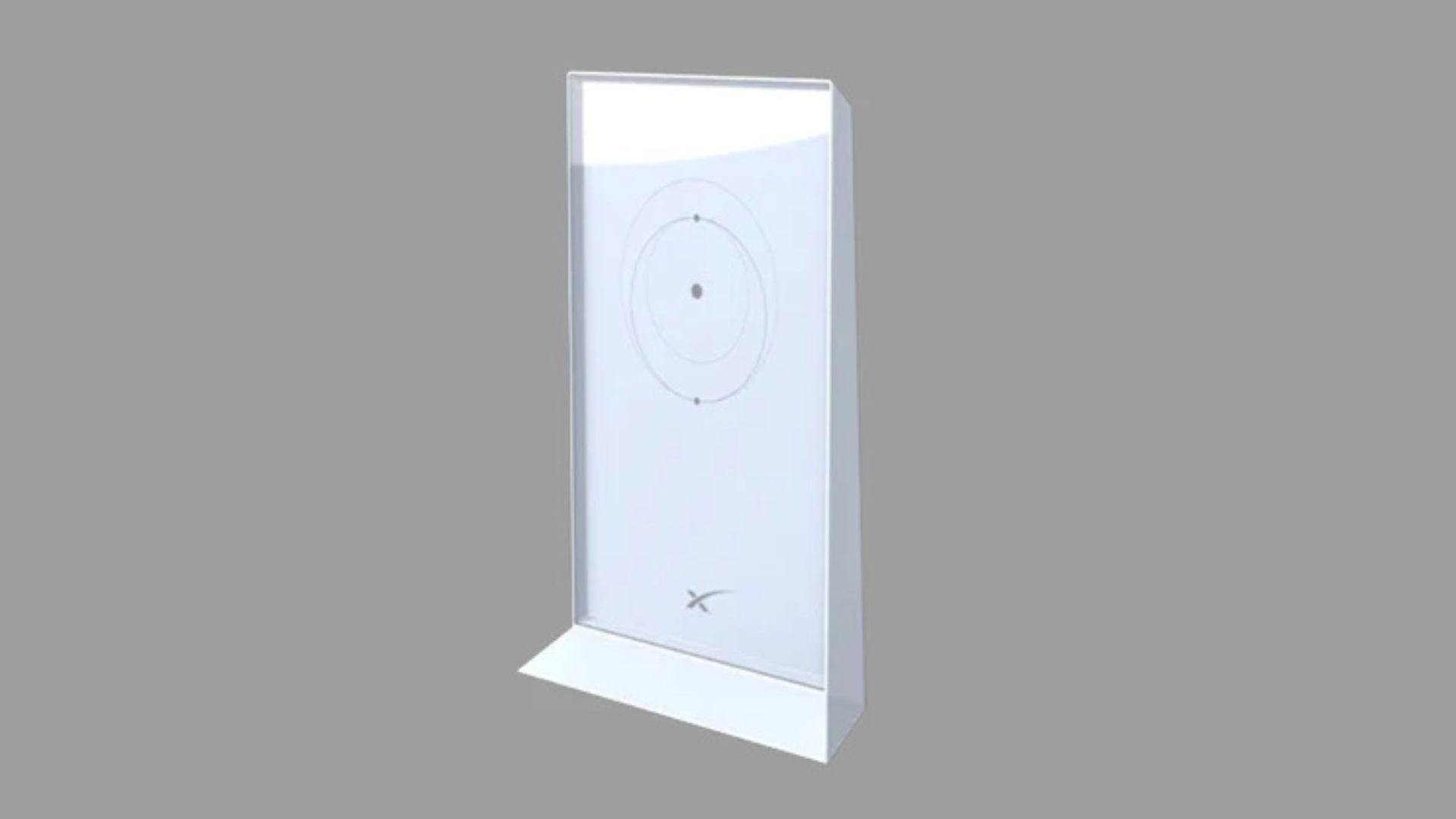
Gen 1 uses the original round antenna. Gen 2 moved to a smaller rectangular panel attached to an actuated mast. Gen 3 remains rectangular but is wider than Gen 2, removes the alignment motors, and uses a removable kickstand for temporary placement.
The current Standard antenna is listed at approximately 6.4 lb without its kickstand, 7 lb with the kickstand, and 8.3 lb with the kickstand and standard cable. Gen 1 and Gen 2 weights vary with the included base, mast, cable, and hardware revision, so compare complete installed weight when selecting a structure or mount.
The Gen 3 kickstand can be useful for a temporary setup on a stable surface, but portability does not automatically mean that the hardware or service plan is approved for use while a vehicle or vessel is moving. Check current Starlink US plan terms, hardware eligibility, geographic restrictions, and in-motion requirements before traveling. For compatible mounting options, see our Starlink portability mounts and accessories.

Setup and Installation: Motors vs. Manual Alignment
Gen 1 and Gen 2 antennas use motors to orient themselves after startup. They should be installed with enough clearance to move and should not be manually forced into position.
Gen 3 has no alignment motors. The installer rotates and tilts the antenna by following the alignment guidance in the Starlink app. The antenna still uses electronic beam steering during operation, but the panel itself remains physically fixed after installation.
Gen 3 has a published 110-degree field of view. That does not eliminate the need for clear sky: use the Starlink app's obstruction tool at the exact proposed location before drilling, mounting, or routing cable. Trees, buildings, rooflines, and other obstructions can cause interruptions with any generation. See our beginner's guide to Starlink Gen 3 for a closer look at the newer setup process.
Router and Connectivity Differences
- Wi-Fi: Gen 1 and Gen 2 kits use Wi-Fi 5-era routers. Router 3 supports Wi-Fi 6, tri-band operation, 4×4 MU-MIMO, and OFDMA.
- Ethernet: The original Gen 1 router generally has a wired Ethernet port. Gen 2 Router 2 requires the separate Starlink Ethernet Adapter. Router 3 provides two built-in LAN ports beneath its rear cover.
- Wi-Fi coverage: Starlink lists Router 3 coverage at up to approximately 3,200 sq ft. This is an estimate, not a guarantee; floor plan, wall materials, interference, router placement, and connected devices can substantially change usable range.
- Cabling: Gen 2 and Gen 3 cables are not interchangeable simply because the newer connection resembles Ethernet. Use the correct Starlink cable, seal, power hardware, and pinout for the exact kit.
- Third-party networking: A wired LAN connection can support a switch or third-party router. Configuration requirements vary; check whether bypass mode or access-point mode is appropriate for your network.
Router 3 can improve the local network experience when compared with the earlier included routers, particularly for newer Wi-Fi devices or wired equipment. It does not by itself guarantee higher satellite download or upload speeds.
Dimensions, Power, and Weather Resistance
| Specification | Gen 1 (Round) | Gen 2 (Standard Actuated) | Gen 3 (Standard) |
|---|---|---|---|
| Approximate antenna dimensions | About 23.2 in diameter; legacy revisions vary | About 20.2 × 11.9 in | 23.4 × 15.07 × 1.5 in |
| Typical or published power | Legacy reports commonly place normal operation around 65–100 W; revision and conditions matter | Approximately 50–75 W average | 75–100 W average in the current specification |
| Antenna environmental rating | Commonly documented as IP54; confirm the revision | IP54 | IP67 Type 4 |
| Published operating temperature | Generally −22°F to 122°F; confirm legacy documentation | −22°F to 122°F | −22°F to 122°F |
Power consumption is not constant. Snow-melt operation, ambient temperature, startup, network activity, cable losses, and the power equipment used can change the load. Size an off-grid battery, inverter, wiring, and overcurrent protection for measured demand and appropriate headroom rather than relying only on an average figure.
Third-party DC conversions can alter the original Starlink power arrangement and introduce electrical, cable, warranty, and reliability risks. Use purpose-designed equipment and have vehicle, marine, or permanent wiring checked by a qualified installer where appropriate. Our Starlink DC power guide explains the planning considerations.
An IP rating describes tested resistance to dust and water under defined conditions. It is not a guarantee against flooding, wind damage, lightning, impact, connector damage, or water entry through an incorrectly assembled cable or roof penetration. Keep connectors properly seated, preserve seals, form a drip loop where appropriate, and follow the setup guide for your exact model.
Starlink Speeds, Plans, and Availability
It is not fact-safe to assign one fixed internet-speed range to each hardware generation. Starlink speeds and latency vary with the service plan, capacity in the area, congestion, obstructions, weather, network management, and the destination server. A newer router may improve Wi-Fi inside the property without changing the satellite link itself.
Plan names, prices, equipment offers, data policies, and availability can change. Check the address-specific options displayed on Starlink's US website and in your Starlink account before purchasing hardware or planning a move. Residential service is generally intended for a fixed land-based location; travel and in-motion use require eligible hardware and a suitable current plan.
Choosing Your Hardware and Getting the Best Performance
Should You Upgrade Your Existing Starlink?
If your Gen 1 or Gen 2 system is supported, undamaged, and meeting your needs, there may be no practical reason to replace it. Consider Gen 3 when one or more of these differences solves a real problem:
- You need built-in Ethernet: Router 3 includes two LAN ports, while Gen 2 needs an adapter.
- You want newer Wi-Fi hardware: Router 3 adds Wi-Fi 6 and may improve local wireless capacity or range in a suitable layout.
- Your existing hardware has failed: Starlink may offer different replacement equipment depending on support status, account, and location.
- You prefer a non-actuated antenna: Gen 3 removes the motors but requires manual alignment with the app.
- You are rebuilding the installation: A new generation requires generation-specific mounts, cables, adapters, and power hardware.
Do not assume Gen 3 will resolve every speed or coverage problem. First use the Starlink app to check obstructions, outages, cable condition, router placement, Wi-Fi interference, and the performance measured directly at the router. If the satellite connection is healthy but Wi-Fi is weak, repositioning the router, adding compatible mesh hardware, or using wired access points may be more effective than replacing the antenna.
Keeping a Gen 2 system running? For compatible Gen 2 kits, the Starlink Gen 2 Router UTR-211 can be used as a genuine replacement router or supported mesh node. Confirm your hardware generation before ordering.
Our Starlink mesh vs third-party networking guide compares common options.Use a Compatible, Secure Mount
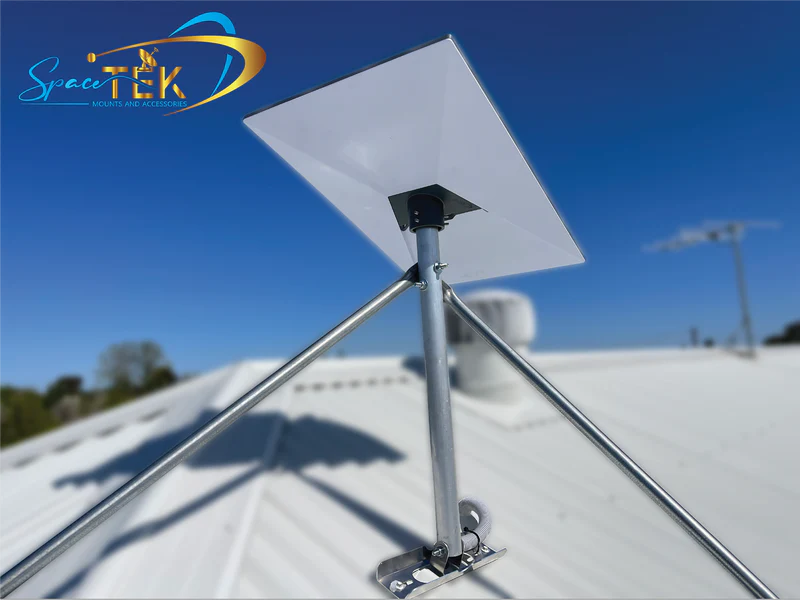
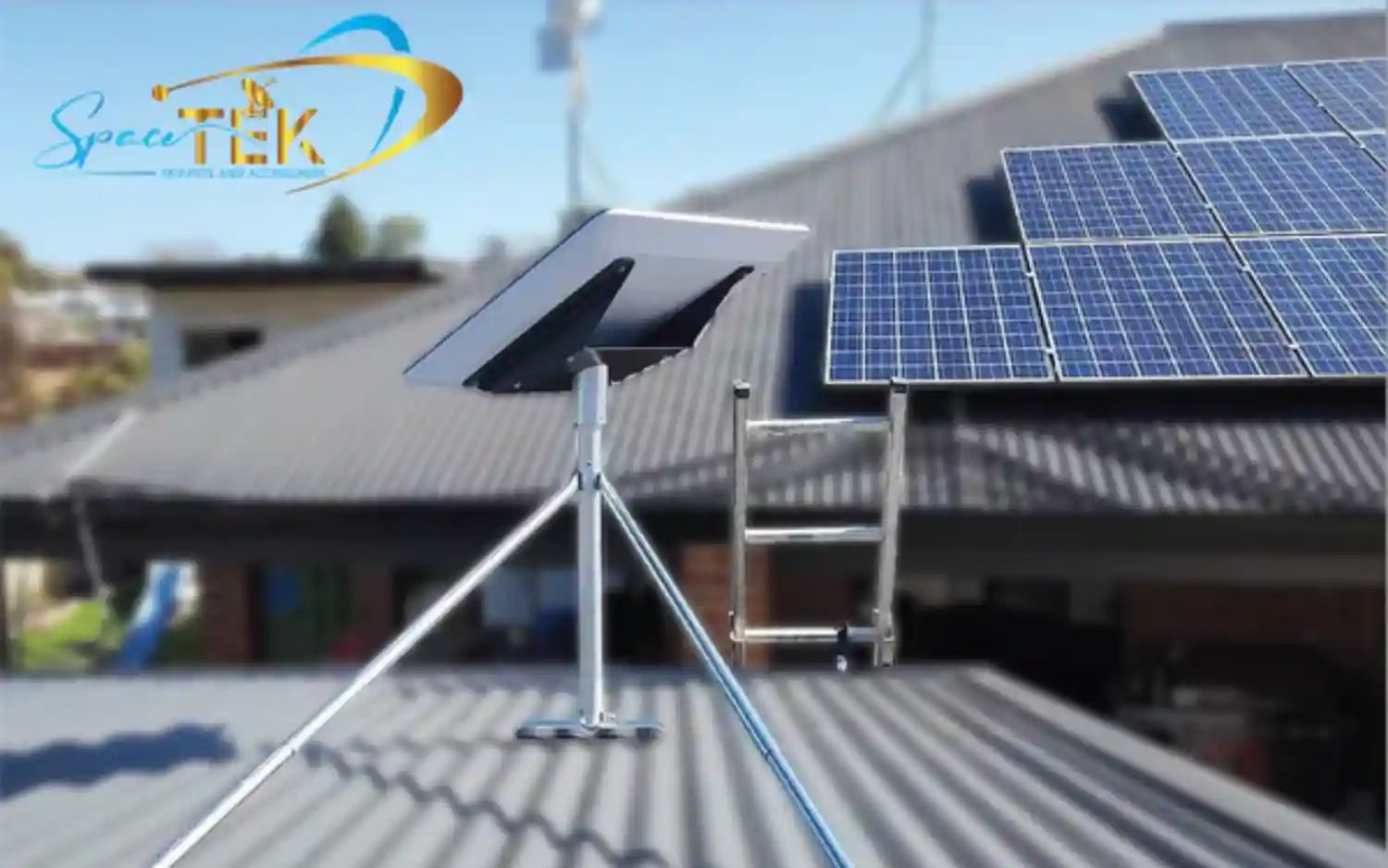
Each Starlink generation has different dimensions, mast arrangements, cable paths, and mounting interfaces. A mount described only as “for Starlink” is not necessarily compatible with every antenna. Confirm the exact Starlink model and the mount's stated fit before installation.
Choose a location with the clear sky view required by the Starlink app and a structure suitable for the equipment and local conditions. The mount should control movement, support the installed load, avoid damaging cables, and keep roof penetrations properly flashed and sealed. Building requirements, wind exposure, snow, coastal corrosion, and suitable fasteners vary by property and location; a qualified roofer, contractor, or other appropriate professional should assess installations outside ordinary DIY scope.
The included Gen 3 kickstand is useful for supported temporary placement, but a dedicated mount is normally more appropriate for an elevated or permanent installation. No mount can guarantee uninterrupted service or protection in every storm, and installation quality remains critical.
Gen 2 owners can explore mounts for Gen 2 Standard Actuated, while Gen 3 owners can browse Gen 3 mounts and accessories. For compatibility details, see what mount upgraders need to know about Gen 2 vs Gen 3.
Starlink Gen 1 vs Gen 2 vs Gen 3: The Bottom Line
Gen 1 is the original round, motorized system with legacy cabling and a router that generally includes Ethernet. Gen 2 is the smaller rectangular, motorized Standard Actuated system with a Wi-Fi 5 router that needs an Ethernet Adapter for wired LAN access. Gen 3 is a manually aligned Standard antenna paired with the Wi-Fi 6 Router 3 and two built-in LAN ports.
Gen 3 provides meaningful hardware and networking updates, but it is not automatically faster at the satellite-service level or the right answer for every installation. Identify your exact kit, compare power and mounting requirements, check current plan eligibility, and solve the specific limitation you have.
SpaceTek supplies generation-specific Starlink mounting and installation accessories. If you are unsure which model or mount you need, contact the SpaceTek team with photos of the antenna, mast, connectors, and equipment label so compatibility can be checked before purchase.

Leave a comment
This site is protected by hCaptcha and the hCaptcha Privacy Policy and Terms of Service apply.