
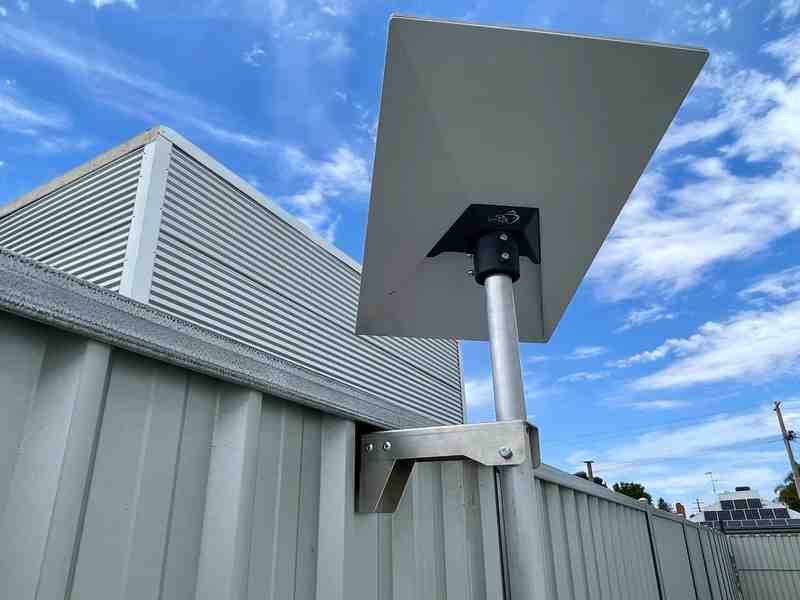
To fix satellite internet issues, start with four quick checks: confirm there is no provider outage, inspect and firmly reseat the dish and router cables, unplug the power supply for a short reset, then check that the dish has a clear, stable view of the sky. If that does not restore service, use your app diagnostics and router lights to work out whether the fault is in your local setup or the wider provider network.
Key Takeaways
- Start by checking your provider app or service status before touching the hardware.
- Reseat the dish cable, router cable, and power lead firmly so each connection sits flush.
- Use your app's obstruction scan to spot trees, gutters, verandah edges, or other blockers.
- If power issues keep coming back, SpaceTek's Starlink troubleshooting guide can help you narrow down the fault.
- A stable dish mount or Starlink mount matters in windy Australian conditions because movement can cause repeat dropouts.
Is the Issue an Outage or Your Setup?
When your connection drops out, the first job is working out whether the problem is at your place or across the wider network. There is no point pulling cables apart for half an hour if the real issue is provider maintenance, a gateway fault, or rough weather affecting network infrastructure.
Following structured satellite broadband troubleshooting steps helps you pinpoint the fault quickly without unnecessary guesswork.

How Do You Check Service Status and Outage Maps?
Before adjusting any hardware, switch your mobile device to mobile data and check your provider's network status:
- Provider mobile apps: The Starlink app or your satellite provider's customer portal should show whether your terminal can communicate with the network. If it flags a wider outage, the issue is not with your local setup.
- Third-party outage trackers: Outage reporting sites can reveal a sudden spike in customer reports across your state or region.
- Gateway weather conditions: Heavy cloud bursts or electrical storms over ground gateway stations, even a long way from your property, can temporarily affect performance.
What Do Gateway and Router Status Lights Mean?
Your indoor hardware uses LED indicators to show connection status at a glance:
- Solid blue or solid white: The router is operating normally and has an active internet connection.
- Pulsing or flashing white: The router is trying to connect to the terminal or satellites.
- Solid red: The router has failed to establish a stable internet connection after repeated attempts.
- Solid violet: The router is in bypass mode and is passing network duties to another gateway.
- No light: The unit is not receiving power, which usually means an unseated lead, tripped circuit, or failed power supply.
What Are the Core Steps for Troubleshooting Satellite Internet Connections?
If network status pages look normal for your area, the bottleneck is probably on site. Troubleshooting satellite internet usually comes down to checking the physical cabling, power delivery, clear sky view, and dish stability.
How Should You Check Cables and Power?
Loose or weathered cables are a common cause of offline errors. Satellite setups carry power and data through the same cable path, so secure seating matters:
- Inspect connector seating: Unplug the cable running from the dish into the power supply or router. Check for bent pins, dust, or moisture, then push the connector firmly back into place until it sits flush.
- Examine the full cable run: Walk the line and look for tight kinks, pinches in window frames, UV damage, or chewing from wildlife. Damaged high-bandwidth satellite cables usually need replacing rather than patching.
- Run a controlled power cycle: Switch off or unplug the power supply briefly, reconnect it, and allow the dish time to reboot, reorient, and reconnect.
For recurring power problems, refer to our guide on resolving satellite power issues to isolate likely hardware faults.
How Do You Fix Obstructions and Weather Interference?
Low Earth Orbit, or LEO, systems rely on moving satellites passing overhead continuously. A single tree branch, roof gutter, or verandah edge can cause small dropouts every few minutes:
- Scan your field of view: Use the mobile app's sky scanning tool. Any marked obstruction on the map represents a physical barrier that can interrupt the signal.
- Account for foliage growth: A dish installation that worked well during winter may drop out more often in spring and summer as tree canopies expand.
- Manage weather and rain fade: Intense Australian downpours can cause brief signal degradation because moisture in the atmosphere interferes with radio signals. Service normally recovers once the storm cell passes.
- Eliminate wind movement: If your dish sits on a flexible pole or unstable timber structure, gusts can shift it enough to affect performance. A robust Starlink mount made from precision-machined or folded aluminium helps keep the dish steady in harsh Australian weather.
How Do You Fix Slow Satellite Speeds and Network Congestion?
When your satellite link stays connected but browsing speeds still drop, the issue is usually latency, data policies, or too many devices competing on the same local network.
LEO services such as Starlink tend to feel more responsive than traditional geostationary satellite services because the satellites orbit much closer to Earth. Traditional geostationary systems sit far higher above the equator, so signals travel a much longer path and simple tasks can feel delayed.
How Do You Troubleshoot Slow Speeds and High Latency?
Understanding the difference between satellite types helps set realistic expectations. Geostationary services can feel sluggish for video calls, online gaming, or fast-loading web apps because each request travels a long distance before returning.
By contrast, LEO systems use lower orbits, which helps reduce lag and make the connection feel more responsive. If you are dealing with gaming delays or sluggish video calls, read our analysis on satellite latency issues.
If speeds slow to a crawl most evenings, you may be hitting peak-hour congestion on shared beams or local network demand inside your home, caravan, shed, or worksite. Lowering streaming quality and pausing large downloads can help keep everyday browsing usable during busy periods.
How Do You Manage Multi-Device Demand and Backup Connections?
Local network traffic often causes slowdowns that look like a satellite fault:
- Audit active devices: Smart TVs, gaming consoles, cloud backups, and security cameras can quietly chew through bandwidth in the background. Disconnect non-essential devices for a quick test.
- Use a backup connection where uptime matters: Remote workers and commercial sites sometimes combine satellite broadband with mobile broadband. A router with failover can keep essential tasks online if the satellite service drops during a storm or network handoff.
When Should You Try Router Bypass or a Factory Reset?
When standard reboots do not clear local network lockups, advanced configuration options can restore router responsiveness. Just treat these steps as a later-stage fix, not the first thing you try.
For off-grid caravans, 4WDs, and remote installations, clean power delivery is vital. Running high-draw AC inverters to power standard household satellite equipment wastes battery reserves. Dedicated DC-to-DC power setups are the better option because they improve efficiency, reduce overall draw, and allow users to bypass proprietary indoor routers in favour of custom, energy-conscious networking hardware.
How Do You Perform a Full Router Factory Reset?
A factory reset wipes custom network names, passwords, and altered network settings, returning the router to its default setup:
- For units with a physical reset button: Use a paperclip or SIM-ejector tool to press and hold the recessed reset button on the base of the router until the status LED pulses, then release.
- For units without a physical reset button: Unplug the power lead from the wall socket and plug it back in straight away several times in a row, following your provider's current reset instructions.
- Complete reconfiguration: Wait for the router to reload its default settings. Connect your phone or laptop to the default setup Wi-Fi network, then assign a new network name and secure password.
When Should You Contact Customer Support for Hardware Replacement?
If you have checked line-of-sight clearance, power cycled the hardware, reseated the cabling, and confirmed there is no regional outage, the fault may sit inside the terminal or proprietary cable.
Take screenshots of your mobile app's diagnostic screens, latency logs, and error notices. Submit an in-app support ticket explaining the physical checks you have already completed. Clear evidence helps support teams avoid sending you through the same basic troubleshooting steps again.
What Are the Most Common Questions About Satellite Internet Troubleshooting?
Why Does My Satellite Internet Disconnect Every Few Minutes?
LEO satellite constellations maintain service by passing your connection between satellites as they move overhead. If a minor obstruction, such as an overhanging branch or chimney edge, blocks part of the sky, your dish can drop packets whenever an orbital path crosses behind that obstruction. Check your app's obstruction map and make sure the dish is mounted firmly enough to avoid wind movement.
Does Bad Weather Permanently Disrupt Satellite Broadband?
No. Extreme downpours can cause a temporary condition called rain fade, where dense moisture scatters and absorbs satellite radio signals. Signal levels usually recover as the storm front passes. Built-in heating can also help prevent snow and ice from building up on the face of some dishes in cold conditions.
Can I Fix a Misaligned Satellite Dish Myself?
It depends on your system type. Modern LEO terminals use automated electronic beam steering and internal positioning, so they usually need a level installation and a clear sky view rather than manual alignment. Traditional geostationary dishes are different and may need a technician with the right signal meter.
How Do You Keep Satellite Internet Stable Long Term?
Resolving satellite internet dropouts comes down to a simple routine: confirm the service status, check cable seating, power cycle the hardware, and keep the dish's sky view clear.
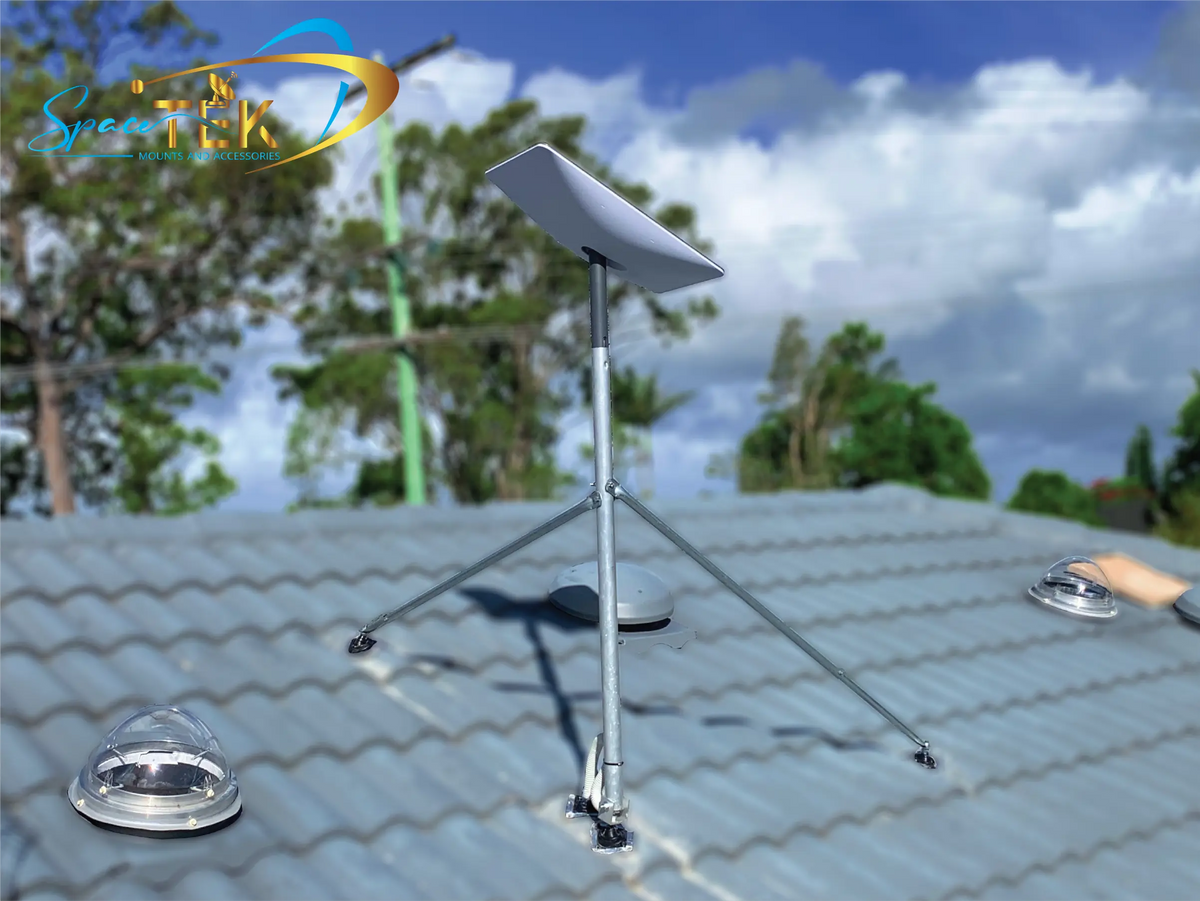
Once the basics are sorted, physical stability makes a big difference. A secure installation using premium dish mounts or heavy-duty Starlink mounts made from precision-machined folded aluminium and reinforced composites helps reduce unwanted mast flex and wind movement. With stable hardware, clean power, and a clear view of the sky, your satellite broadband has a much better chance of staying dependable in remote Australian conditions.


Leave a comment
This site is protected by hCaptcha and the hCaptcha Privacy Policy and Terms of Service apply.