
What Are the Starlink Router Specifications for Router Mini, Router 3 and Gen 2?
Starlink Router Mini, Router 3 (Gen 3) and the Gen 2 UTA-211 router differ in their Wi-Fi capability, Ethernet connections, power arrangement and environmental information. This guide compares those specifications and explains what they mean when connecting wired equipment, checking compatibility or replacing an existing router.
Hi, I'm Andrew Ziogas, managing director at SpaceTek Australia, and I work with Starlink equipment and installation accessories for fixed and mobile setups. In this guide, I’ll help you identify the router in use and check its connections and official setup requirements before making changes.
Which Starlink Router Do You Have?
The quickest way to identify a Starlink router is by its shape, status-light position and Ethernet ports. Use these visual cues as a starting point, then confirm the label on the device and the documentation for the installed kit before changing cables or settings.
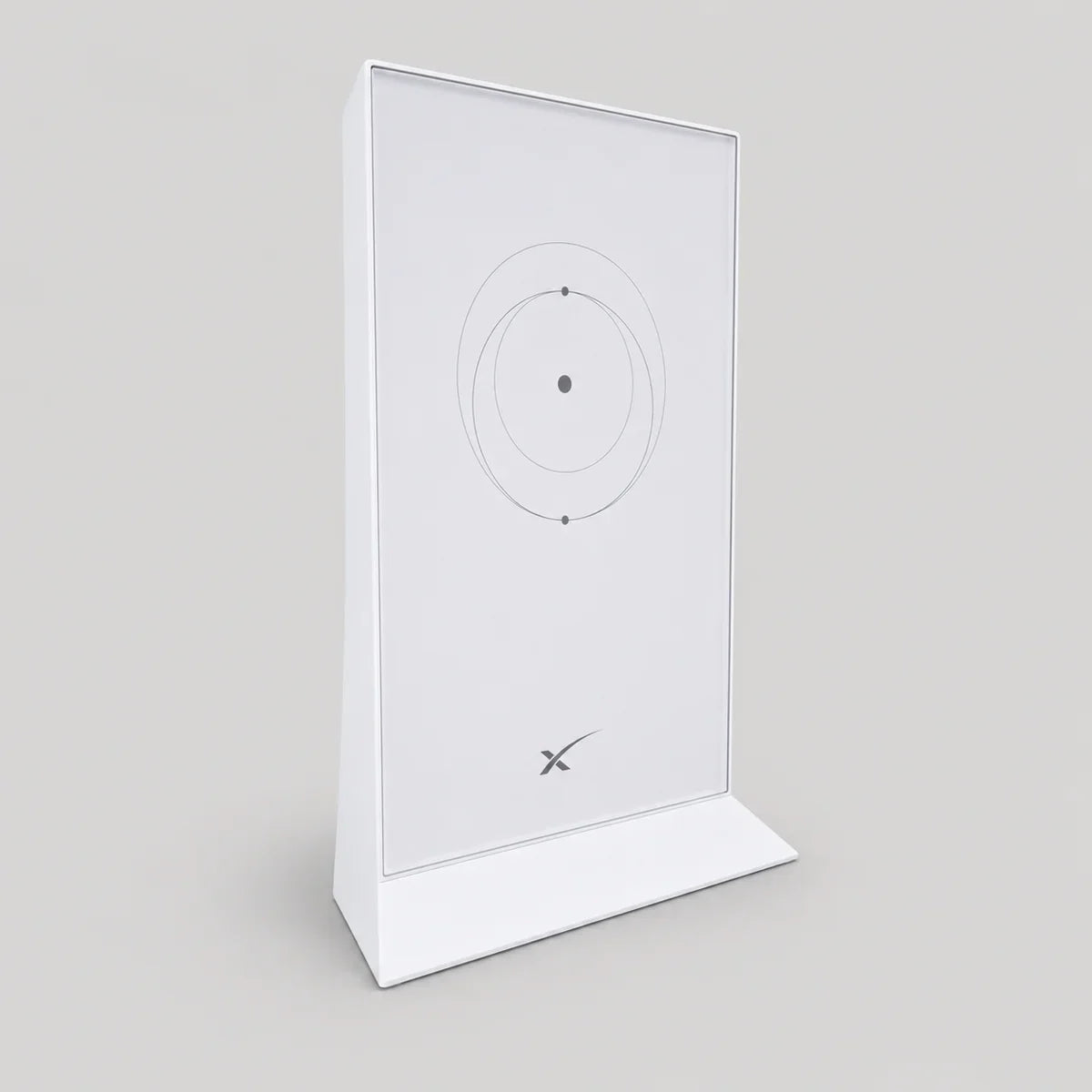
- Gen 2 router or mesh node: An upright unit with a glossy front panel and a small status light near its base.
- Router 3 (Gen 3) or mesh node: A broad, low-profile unit with a status light at a front corner. Its rear panel has a WAN port on the left and two LAN ports under the cover.
- Router Mini: A compact rectangular unit on an integrated kickstand, with a front-corner status light. Its two rear Ethernet ports are a WAN port marked with the Starlink dish symbol and a separate LAN port.
Understanding Starlink Router Specifications
A few terms make the model comparison easier to follow:
- Wi-Fi generation: Wi-Fi 6 is a newer wireless standard designed to handle several compatible devices more efficiently than earlier Wi-Fi generations. It does not increase the speed supplied by the Starlink service.
- Frequency bands: Routers use radio bands to communicate with local devices. A tri-band router has an additional band for local wireless capacity, rather than a guaranteed increase in internet speed.
- MIMO and MU-MIMO: These describe how a router uses several antennas to communicate with devices. MU-MIMO can help serve multiple compatible devices more effectively.
- IP rating: This indicates tested dust and water protection for the router enclosure. It does not automatically apply to the power supply, connectors or cables.
What Are the Starlink Router 3 (Gen 3) Specifications?
Router 3 is Starlink’s tri-band Wi-Fi 6 option. Its key differences are the additional Wi-Fi band and two built-in LAN ports, which can make it the more flexible choice for busy local networks or wired equipment.
The official Router 3 specifications list:
- Wireless technology: IEEE 802.11a/b/g/n/ac/ax Wi-Fi 6 with tri-band 2.4 GHz and 5 GHz operation, 4×4 MU-MIMO and OFDMA.
- Security: WPA2/WPA3 by default. The Starlink app does not provide a setting to change this.
- Wired connections: Two LAN ports under the rear rubber cover.
- Operating temperature: -30°C to 50°C.
- Environmental protection: IP56 water resistance for indoor use.
In practical terms, Router 3 can connect two wired devices directly, such as a computer or network switch, without an extra Ethernet adaptor. Its additional wireless band can also help organise local traffic when several compatible devices are online. Router 3 does not power the Starlink dish. For a Gen 2 setup, the official Router 3 setup guide says to leave the Gen 2 router connected to Starlink and enable Bypass Mode on that Gen 2 router when Router 3 is used as the main Wi-Fi router. Router 3 can also replace a Gen 2 mesh node where the official guidance supports that setup. See the official Router 3 specifications for the technical reference and SpaceTek’s Router Gen 3 guide for additional installation context.
What Are the Starlink Gen 2 Router Specifications?
Gen 2 UTA-211 is an earlier dual-band Wi-Fi 5 router. Unlike Router 3, it has no built-in RJ45 port, so wired networking requires the compatible Starlink Ethernet adaptor. See the official Gen 2 setup guide for the connection arrangement and SpaceTek’s Starlink Router Gen 3 Guide 2026 for newer-router context.
The official Gen 2 setup guide lists:
- Wireless technology: IEEE 802.11a/b/g/n/ac Wi-Fi 5 with dual-band 2.4 GHz and 5 GHz operation, plus 3×3 MIMO.
- Security: WPA2/WPA3 by default.
- Wired connections: No onboard RJ45 ports. A compatible external Ethernet adaptor is required.
- Operating temperature: -30°C to 50°C.
- Environmental protection: IP54 water resistance for indoor use. See the Gen 2 setup guide for the applicable setup.
For everyday use, Gen 2 can manage a straightforward wireless network, but a desktop computer, Ethernet switch or separate router cannot plug into it directly. Install the compatible Starlink Ethernet adaptor before adding wired equipment. Check the official guide for the installed generation before using Gen 2 equipment with another router or mesh unit.
What Are the Starlink Router Mini Specifications?
Router Mini is a compact dual-band Wi-Fi 6 model used with the V5 configuration. It differs from Router 3 by using one dedicated WAN port for the incoming Starlink connection and one dedicated LAN port for local wired equipment.
The official Router Mini setup guide identifies:
- Wireless technology: Wi-Fi 6 on the 2.4 GHz and 5 GHz bands, with 2×2 MU-MIMO on 2.4 GHz and 2×3 MU-MIMO on 5 GHz.
- Security: WPA2 security.
- Wired connections: Dedicated WAN and LAN Ethernet ports.
- Operating temperature: -30°C to 50°C.
- Environmental information: An IP rating is not specified in the official Router Mini setup guide.
The separate WAN and LAN ports make the connection layout easy to identify: connect the applicable upstream Starlink equipment to WAN, then use LAN for a computer, switch or separate router. Use the official guide to confirm the correct cables, connectors and installation conditions for the exact kit. Router Mini remains a Router Mini model in a V5 configuration; V5 is not a separate router model.
How Do Router Mini, Router 3 and Gen 2 Compare?
The table below compares the verified specifications that matter most when identifying a router, connecting local equipment and checking its installation requirements.
| Specification | Gen 2 Router (UTA-211) | Router 3 (Gen 3) | Router Mini |
|---|---|---|---|
| Wi-Fi standard | Wi-Fi 5 | Wi-Fi 6 | Wi-Fi 6 |
| Frequency bands | Dual-band: 2.4 GHz and 5 GHz | Tri-band: 2.4 GHz and 5 GHz | Dual-band: 2.4 GHz and 5 GHz |
| Multi-device technology | 3×3 MIMO | 4×4 MU-MIMO with OFDMA | 2×2 MU-MIMO on 2.4 GHz and 2×3 MU-MIMO on 5 GHz |
| Wireless security | WPA2/WPA3 by default | WPA2/WPA3 by default | WPA2 |
| Wired connections | Compatible external Ethernet adaptor required | Two LAN ports under the rear rubber cover | Dedicated WAN and LAN Ethernet ports |
| Operating temperature | -30°C to 50°C | -30°C to 50°C | -30°C to 50°C |
| Environmental information | IP54 water resistance for indoor use | IP56 water resistance for indoor use | IP rating not specified in the guide used here |
| Power arrangement | Integrated AC power supply | External power supply; does not power the dish | Direct DC barrel input |
The biggest practical distinction is the connection layout. Router 3 has two built-in LAN ports and an extra Wi-Fi band, Gen 2 needs an adaptor before wired equipment can be connected, and Router Mini uses clearly separated WAN and LAN ports. Check the router model, the required cables and the official guide before replacing equipment or combining router and mesh hardware.
Which Starlink Router Is Right for Your Setup?
The best fit depends on the router already installed and the connections required. Router 3 is the model to consider when two built-in LAN ports and additional local Wi-Fi capacity matter. Gen 2 remains suitable for an existing wireless setup, but it needs the compatible Ethernet adaptor for a wired device. Router Mini suits compact setups that need separate incoming and local Ethernet connections.
Before purchasing, replacing or adding a router, confirm the exact router and dish generation, the required cables and the configuration supported in the relevant official Starlink guide.
FAQs About Starlink Router Specifications
Does Router Mini Support Wi-Fi 6?
Yes. Router Mini is a dual-band Wi-Fi 6 router using the 2.4 GHz and 5 GHz bands. Its Wi-Fi capability helps manage compatible local devices, but it does not guarantee a particular Starlink internet speed or coverage area. Check the official Router Mini setup guide for the applicable kit and connection arrangement.
Does Router 3 Power the Starlink Dish?
No. Router 3 uses an external power supply, but it does not power the Starlink dish. Follow the official setup guidance for the installed Starlink generation before changing any router or dish connections.
Can Router Mini, Router 3 and Gen 2 Work Together?
Only in configurations supported by Starlink’s official documentation. Router 3 can replace a Gen 2 mesh node. When Router 3 is used as the main Wi-Fi router with a Gen 2 setup, the Gen 2 router remains connected to Starlink and uses Bypass Mode. Do not assume that other router and mesh combinations are compatible without checking the relevant guide.
Does Gen 2 Need an Ethernet Adaptor?
Yes, for a wired connection. The Gen 2 router has no built-in RJ45 port, so a compatible Starlink Ethernet adaptor is required before connecting equipment such as a computer, switch or separate router. For supported Router 3 and Gen 2 arrangements, refer to the official Router 3 setup guide and official Gen 2 setup guide.
Does Router Mini Have an IP Rating?
An IP rating is not specified in the Router Mini guidance used in this article. Do not transfer the IP54 or IP56 ratings listed for other routers to Router Mini; check the official guide for the exact model and installation conditions.
Final Verdict: Which Starlink Router Should You Choose?
Start by confirming the router and dish generation already installed. Router 3 offers an extra Wi-Fi band and two built-in LAN ports, Gen 2 needs a compatible Ethernet adaptor for wired equipment, and Router Mini has separate WAN and LAN ports in a compact design. The right choice depends on the required connections and the model combinations confirmed in Starlink’s official documentation.
Before purchasing, replacing or adding a router, check the exact model, required cables, power arrangement and supported setup. That helps avoid assuming that ports, environmental information or mesh compatibility transfer between router generations.
For compatible replacement hardware and installation components, explore the relevant SpaceTek products:
- Starlink Router Mini Wi-Fi 6 mesh node for a compact Router Mini replacement or supported mesh setup.
- Genuine Starlink Gen 2 UTA-211 router and mesh node for compatible Gen 2 router hardware.
- Starlink Gen 3 router power supply wall mount to organise a compatible Gen 3 router power supply in a fixed installation.

Leave a comment
This site is protected by hCaptcha and the hCaptcha Privacy Policy and Terms of Service apply.