
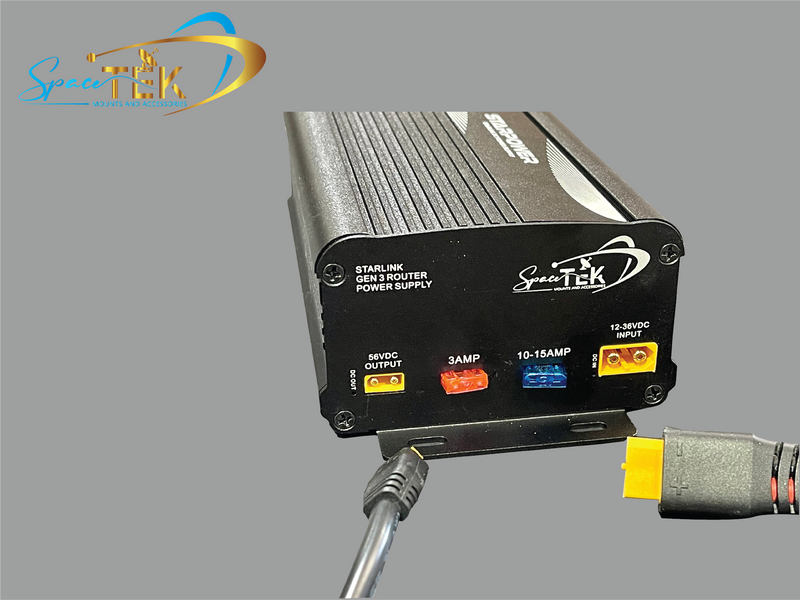
Starlink status lights can help with basic troubleshooting, but their meaning depends on the hardware in your kit. Some Starlink systems have a light on the Wi-Fi router, some power supplies have their own indicator, and other models combine the router and power system differently. Before interpreting a light, confirm which device it is on and identify your Starlink model in the Starlink app.
For current Router 3 hardware, the commonly documented router-light states are:
- Flashing white: The router is starting or trying to connect.
- Solid white: The router is connected to the internet.
- Red: The router could not connect to the internet.
- Violet: The router is in bypass mode.
- No light: The router may have no power, or its status light may have turned off automatically after a period of normal operation.
These meanings should not be applied automatically to every Starlink power supply, router, Mini, or earlier-generation kit. Use the Starlink app and the setup guide for your exact hardware as the primary diagnostic sources.

Note: This image is a simplified visual reference. Indicator behavior varies by Starlink hardware generation; confirm the meaning for your kit in the Starlink app or its official setup guide.
Understanding Starlink Power Supply and Router Lights
The phrase “power supply light” is often used loosely, but the illuminated indicator may actually be on the router. That distinction matters because a power indicator and a router status light do not necessarily report the same thing.
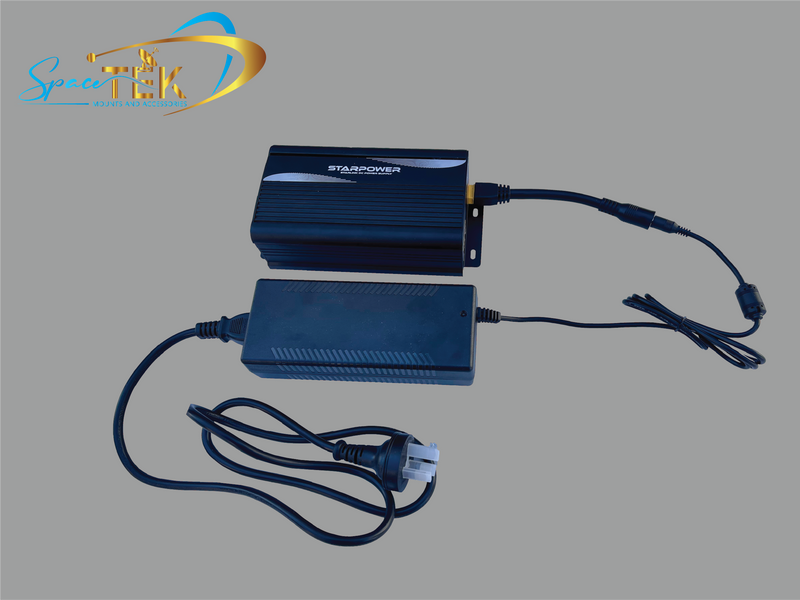
- A power-supply indicator generally confirms a power or hardware state specified for that particular supply. It does not always prove that the Starlink terminal has internet service.
- A router status light may report startup, internet connectivity, or bypass mode, depending on the router model.
- The Starlink app provides more useful details about outages, cable faults, obstructions, router status, and the connection between the terminal and the satellite network.
Flashing White Light
On Router 3, a flashing white light means the router is trying to connect. This is normal while the system starts. If the router does not connect, check the Starlink app for alerts and confirm that every cable is fully seated and undamaged. Do not assume the terminal needs to be manually realigned; many Starlink models manage their orientation automatically, while fixed-orientation models should be installed as directed by the app.
Solid White Light
On Router 3, a solid white light indicates an internet connection. The light may turn off automatically after a period of normal operation, so an unlit router is not, by itself, proof of a power failure. Check whether your devices can connect and review the system status in the Starlink app.
Red Light
On Router 3, a red light means the router is not connected to the internet. Possible causes include a startup or service issue, a loose or damaged cable, an obstruction, or a hardware alert. Open the Starlink app before moving equipment; it can help distinguish an obstruction from a cable, router, or network problem.
Violet Light
On Router 3, a violet light indicates bypass mode. In this mode, routing duties are handed to connected third-party network equipment. If bypass mode was not intended, follow Starlink's current instructions for your router model; exiting bypass mode may require a factory reset.
No Light
No light can have more than one meaning. The device may be unplugged or unpowered, but a router's status light may also switch off automatically during normal operation. First check the Starlink app and test whether the system is online. If it is offline, verify the wall outlet, power cable, power supply, and all Starlink cable connections without opening or modifying the equipment.

Troubleshooting Starlink Power and Connection Issues
1. Identify Your Hardware
Open the Starlink app and confirm the kit or router model. Starlink Standard, Standard Actuated, earlier circular systems, Performance hardware, Mini, and add-on routers do not all use the same power architecture or indicators.
2. Check the Starlink App
Look for an outage, obstruction, cable, router, or hardware alert. The app is more authoritative than a generic LED chart because it reads information from your system.
3. Check Power and Connections
- Confirm that the outlet works and that the power plug is fully inserted.
- Make sure each Starlink connector is seated in the correct port.
- Inspect accessible cables and connectors for cuts, crushing, bent contacts, moisture, or other visible damage.
- Do not open the power supply or attempt component-level repairs.
4. Restart the System
If the app or the official instructions for your model recommend a restart, disconnect power, wait briefly, and reconnect it. Allow the system time to boot and reacquire service. Avoid repeatedly cycling power, as this can interrupt startup and may trigger a factory-reset sequence on some earlier router models.
5. Check for Obstructions
Use the obstruction tool in the Starlink app. Trees, rooflines, poles, and nearby structures can interrupt the terminal's view of the sky. Relocate or remount the terminal only when the app's data indicates that placement is contributing to the problem.
6. Contact Starlink Support When Needed
If an alert remains after the documented checks, or if a cable, connector, router, terminal, or power supply appears damaged, contact Starlink Support through the app or your Starlink account. Starlink can review system diagnostics and advise whether a replacement component is appropriate. Do not purchase a replacement solely on the basis of an LED color, because parts and compatibility vary by kit.
If the Router Is Unreachable
- Confirm the correct Wi-Fi network: Check that your phone or computer is connected to your Starlink network rather than another saved network.
- Move closer to the router: Thick walls, metal surfaces, appliances, and distance can weaken Wi-Fi even when the Starlink internet connection is working.
- Check the app: If the app can communicate with the Starlink terminal but not the router, follow the model-specific router guidance it provides.
- Reset only when appropriate: A factory reset removes settings and differs by model. Use the official procedure for your exact router rather than a generic reset method.
Protecting Your Starlink Installation
Good placement and cable management can reduce avoidable faults. Keep cables supported, protect them from sharp edges and crushing, and preserve the connector seals specified for your Starlink kit. Do not sharply bend, splice, or modify proprietary Starlink cables unless the hardware documentation expressly permits it.
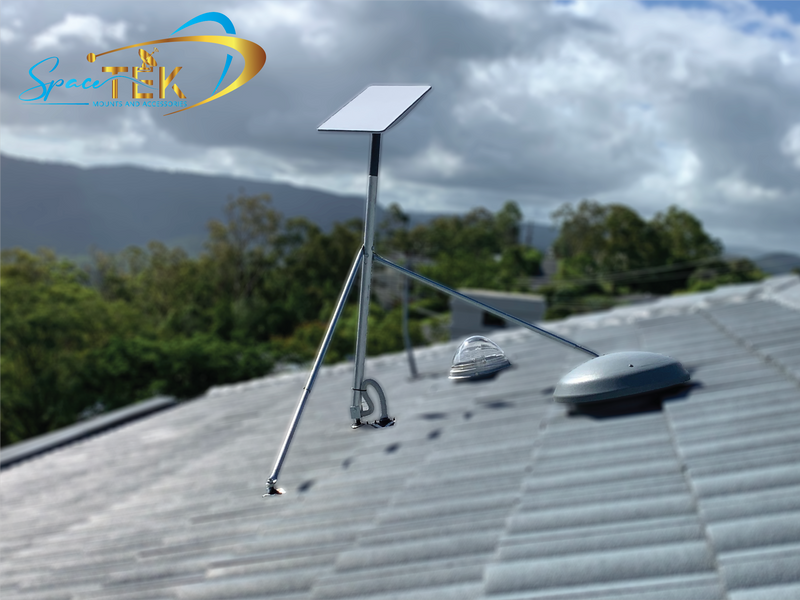
A stable mount and a clear view of the sky are also important. Choose mounting hardware that is compatible with your exact terminal and suitable for the installation surface and local conditions. Spacetek supplies Starlink-compatible mounting and cable-management accessories; product compatibility should always be checked against your specific hardware before purchase. See our guide to choosing Starlink equipment and accessories.
Frequently Asked Questions
Does a solid white light always mean Starlink is online?
No. On Router 3, solid white indicates that the router is connected to the internet. A white indicator on another power supply or hardware model may represent a different state. Confirm which device has the light and check the Starlink app.
Why is my Starlink light flashing white?
On Router 3, flashing white means the router is trying to connect. During startup this can be normal. If it continues and the system remains offline, check the Starlink app, cables, power, and any reported obstructions or outages.
What should I do if there is no light?
First determine whether the device is actually offline. Some router lights turn off automatically during normal operation. If the system has no power, test the outlet and check all external power and data connections. If there is visible damage or the system remains offline, contact Starlink Support.
Can I use the light to decide which part needs replacing?
Not reliably. Similar symptoms can result from the outlet, power cable, power supply, Starlink cable, router, terminal, or a service issue. Review the app's diagnostics and contact Starlink Support before replacing hardware.
Do all Starlink generations use the same light codes?
No. Starlink hardware generations and kits use different routers, power supplies, ports, and indicator behavior. Guidance for Router 3 should not be assumed to apply to Mini, earlier routers, Performance systems, or every separate power supply.
Conclusion
A Starlink light is a useful starting point, not a complete diagnosis. Identify the device and hardware generation, check the Starlink app, inspect power and cable connections, and follow the official guide for your exact kit. If the app reports a persistent hardware fault or the equipment is visibly damaged, contact Starlink Support before ordering replacement parts.
For compatible mounting and cable-management options, explore Spacetek's Starlink accessories guide. Always confirm compatibility with your specific Starlink model and installation requirements.

Leave a comment
This site is protected by hCaptcha and the hCaptcha Privacy Policy and Terms of Service apply.